Pages

Wednesday, November 2, 2016

MsIgnite BRK3059 - Deploy Cloud Connector Edition with Microsoft Office 365

Presented by Korneel Bullens   

Options for voice in Office 365
  • Cloud PBX with PSTN Calling service
    Available in United States, United Kingdom, Puerto Rico, Preview starting for France and Spain
  • Cloud PBX with on-premises PSTN connectivity
    Hosts users online, connects via on premises
  • Skype for Business Cloud Connector Edition (CCE)
    Hybrid offering that contains a set of virtualized machines

Cloud Connector Overview

CCE was first released in April of 2016 and there have been 3 minor updates or versions so far. The next major version (2.0) is probably coming early next year.

CCE should be seen as a "black box", i.e. do not change the topology, scripts, software or anything really. CCE deploys in approximately 7 hours (or 45 min if you get it as an appliance.)

CCE is scaled for 70 percent internal traffic, that is media not going through edge component of CCE, and 30 percent external traffic. It is not designed to be used in hosting scenarios.

CCE do not support media bypass, custom dialplans or co-existence with on-prem S4B Pools.

The presentation continued with technical details around the installation of CCE.

Interesting to see new "cc-commands" like Install-CcAppliance, rather than the good old "cs-commands".

Questions and Answers

Is it possible to use VLAN tagging for the two different networks CCE is connected to?
Yes.

Is it possible to use a public certificate on the inside?
No, import the internal CA root certificate.

Is it possible to let CCE share hardware with something else?
No, the cloud connector is an appliance.


Resources

Sunday, October 30, 2016

MsIgnite BRK3058 - Dig into the Skype Operations Framework

Presented by Bryan Nyce

SOF is a framework, a set of practical application / guidance for a successful end-to-end deployment of Skype for business.

SOF is a living framework. In July 2016, the first version was released, it was accompanied by 17 training sessions. In September 2016 right before Ignite a second major update were done, this including cloud migration and 11 new additional training sessions. Future minor and major updates will come for the framework.

"The shift to cloud requires a rethinking of how to Plan, Deliver, and Operate Skype for business Online." - Things we "used to do" might not work so well any more.
 
SOF is focused on cloud, but the ideas and concepts can be used for on-prem installations as well.

Between the release of the on-prem Lync 2013 to Skype for business Server 2015 a long time passed (like 2 years+) The cloud is changing and adding features at a higher pace.

Technet already contains all the documentation needed to do a cloud migration, technically, so why do we need SOF?
Technet answers how to move an account from on-prem to the cloud. SOF gives the guidance on how to define which users should be moved first, which users should stay on-prem and how do we do the migration in an orderly fashion.

SOF defines what "we" (Skype for business nerds I guess...) mean when we use various terms. E.g. what is a network assessment - it can have different meaning to different people - with SOF we can define what we mean.

A Persona Analysis helps us understand the communication needs of our users, and how these needs will change. "I have a PBX that does 10 things, I want the new system to do these 10 things." - Well, then stay with the old system, but if you want to expand and enhance communications - here's what you can do... Mobile users / remote workers / home users, these are good candidates to move to the cloud. Call center users might not be a good fit to move to the cloud, yet.

Are we "UC ready"? Skype for business online is not an instant messaging / chat system, it is not a conferencing solution, it is not a PBX - it is all these things working together and it is probably different from what is used in the organization today.

The network assessment guidance now contains information about Express Route. Express Route is one of the tools in our toolbox - the assessment will tell us if we should use it or not.

 SOF - 3 phases, 12 stages

Tuesday, October 25, 2016

MsIgnite BRK2077 - Get to know the Skype Operations Framework

(or Success through the Skype Operations Framework - SOF)

Presented by Srini Raghavan and Ali Rohani

What does it take to run high-quality real-time communications service globally?
Of course, a cloud-based communications platform, but much more than so, we need to know how to plan, deliver and operate such a service. When we say "communications" it means more than just instant messaging and presence. It means voice communication and voice conferencing, with users located in different countries or regions of the world.

The difference between a PBX and cloud-based communications system is as vast as comparing a private well to our modern-day water supply system. So, we have an external network and local components (in-house plumbing) and all these components must work well (no pun intended) for our service to work.

SOF is a framework that gives you: Activity Descriptions, Delivery Guidance, Workshops, Questionnaires, Reports, Tools, Scripts, Tests, Checklists, Project Plans and Templates.

There are 3 phases with 4 stages in every phase, and each stage is a defined set of activities that are critical for your success. For each actvity there are assets and/or tools to help you with that specific activity.


Phase (stages)
Plan (Envision, Assess, Desgin, Prepare)
Deliver (Deploy, Enable, Adopt, Enhance)
Operate (Run, Support, Monitor, Report)

For example: A part of the Assess stage is the Network Assessment and here SOF is suggesting / providing the Skype for Business Network Assessment Tool

Wow, this 4G network is not fit for Realtime UC

SOF is mainly designed for Skype for business online but it can also be leveraged for on-prem installations. Activities such as the network assement, the envisioning workshop and others are common no matter if Skype for business online or on-prem is used.

To learn more about SOF visit the Skype Academy found at the Skype Operations Framework website.

Friday, October 21, 2016

MsIgnite BRK4004 - Troubleshoot new Skype for Business offerings


Presented by Jason Collier and Ricardo Garcia

Troubleshooting - reading logs and asking the right questions, like

  • What happened?
  • When?
  • Where?
  • Who's affected?
  • What is the Error message and/or symptom?

The Skype for business client logs to the .uccapilog and .etl logs and the the Application log in event viewer.

New features in the Desktop client


Video based screen sharing (VbSS) 

Previously all screen sharing was done with the Remote Desktop Protocol (RDP) which is limited to a maximum of 8 frames per second and it runs over TCP. VbSS can go up to 30 frames per second and can use the quicker "fire-and-forget" protocol UDP. VbSS will also give a noticable faster call setup or start of the screen sharing in an existing session. There is no visual indication in the client to indicate if RDP or VbSS is being used for screen sharing, therefore we need to examine the logs to see if it works properly or not. Some sort of graphical indication and/or information about which codec is being used might come in future releases of the client, (please go to www.skypefeedback.com to vote for this idea if you like it.) In the SDP, RDP screen sharing is announced as
m=applicationsharing 53111 TCP/RTP/SAVP 127
and VbSS as
m=video 50054 RTP/SAVP 123 123
both media types are offered and accepted in the SIP dialog due to fallback reasons. If one of the clients in a meeting do not support VbSS RDP will be used as a fallback and if you would like to force the meeting to use RDP rather than VbSS, turn on recording. After a meeting has changed from VbSS to RDP it will not fallback to VbSS even if circumstances change.

Also, please note that VbSS is using UDP so make sure to open your firewalls when enabling this feature, more information about this is available in the article: Video based Screen Sharing for Skype for Business Server 2015. Audio is not supported in VbSS, but a workaround might be to use the Virtual Audio Cable software, and VbSS will not be in the RTM version of the Skype for business for Mac client, but will come in a later update.


Offline Messaging 

Offline Messaging uses Exchange Web Service (EWS), Exchange Server and the message history spooler so it works even with a Lync 2010 server. EnableIMArchiving in the client policy must be enabled for Offline Messaging to work.

PSTN dialing and PSTN conferencing issues

 
PSTN conferencing in Office 365 is a quite complex animal.

In Office 365 there is a user forest and a "PSTN resources" forest. This means that a PSTN conference is two cascaded conferences in two separate MCUs. Without dynamic conference IDs there is an issue with these two conferences not getting connected. This issue is called a bar-belling failure (not "disappointing" as the guy sitting in front of me in the audience suggested). The symptom for the users are that VoIP users can hear VoIP users and PSTN users can hear PSTN users, only. Also, the users might see an "Uninvited guest" in the meeting. There are two ways of avoiding this to happen. Instruct your users to use the "End meeting" function when leaving a meeting (but how well is that going to work out?) Or contact support and ask them to enable your tenant for dynamic conference IDs (and this is the real fix which is available since September 1st, 2016.) Eventually all tenants will be fixed and this issue should be a thing of the past.

In a Skype for business meeting it is possible to actually “End a meeting”

Skype for business for Mac

The presentation continued with logs in the Mac client. All you need to know about the old Lync for Mac 2011 client is summarized in this article: Removing Lync for Mac2011 :-) 

The Mac client has a dependency on the Certificate CRL - if a location to the CRL is included in the certificate it must be accessible by the Mac computer. That is accessible via http(s) and not LDAP. Also, be aware that a Windows CA does not have an http(s) address to the CRL published by default, LDAP only. 
 
Snooper 7.0.1168.1 will be released together with the Mac client, and this version can open and parse Skype for business for Mac client logs.

Resources for troubleshooting

Thursday, October 20, 2016

Fun with Busylight hardware

Back in 2012 I did a test of the Lync Busylight product, and finally it is time for a follow up. I have now received the new redesigned version of the Busylight and also the Kuandobox hardware.

As you probably know the Busylight will be green, yellow or red depending on the status of your Skype for business client. The Kunandobox however, will feed presence status to the client depending of the state of another PBX telephone. So, I decided to combine the two, and here is the result.


Tunneling presence from the PBX phone into my Skype for business client which in turn feeds the busylight next to the phone I have created a nice little "Unified Presence" scenario where people online and people in my room will know when I am busy on the PBX phone or in Skype for business.

Notice the 4 second delay after the handset is put back in place - this is "clerical time" that is settable through the Busylight GUI which resides as a little icon in the taskbar.

Give me some time to breathe between all these calls


Lab setup - Hardware

Lab setup - Software
  • Windows 10
  • Skype for business 2016
  • Kuando Busylight/KuandoBOX software version 3.2.2

Sunday, October 16, 2016

MsIgnite BRK2086 - Plan for Skype for Business Mobile Clients

(or Enabling mobility with Skype for business)
Presented by Praveen Maloo
(who spoke continuously for 1 hour+ in a poised, controlled manner, good job!)


The integration with Outlook is better with join straight from the Outlook calendar, and access to the calendar from Skype for business. To get presence in Outlook is being worked on.


It is possible to upload and present a Power point file with the Office Web Apps server in a meeting.


The integration with the phone hardware / OS is improved when it comes to contacts and dialing. Before an ongoing Skype for business call or meeting were cut in the event of an incoming native (PSTN) call. This is now fixed. When in a Skype for business call, the user will get an option to answer or ignore the PSTN call; even send to voicemail and hold the current call is there. This will be available soon for iOS 10 devices.


The join button in Outlook, available now.


Another one of the issues with putting a phone in a phone is solved.


The login experience is improved with some more help texts at the login screen. If the username is entered in an incorrect format, the application will let you know immediately and not wait for you to enter the password and then fail the login.


The join experience is better with the application understanding where the meeting is being hosted, in your system or in a federated one.


Push notifications with the possibility to communicate messages to the lock screen, will be available in Office 365 first and then come to the on-prem software. Also, push notifications will show up even if you have not actually used the app for a long time. Presence during meetings have been inconsistent in the past but should now work better with push notifications in place. There is tenant level and user level settings to turn push notifications on or off. Sometimes when logging in to the mobile client old toasts appear from hours ago, and this is also fixed with push notifications.
15-20% less battery is consumed now after improvements, compared to earlier.
Transcription and translation of meetings will be in the mobile clients.
Siri support through Apple's Sirikit integration is coming.


Video based Screen Sharing (VbSS) will improve the meeting experience on mobile clients. With Remote Desktop Protocol (RDP) sharing maybe 3-4 Frames Per Second (FPS) could be reached over TCP. With VbSS 15 FPS can be reached over UDP, making the sharing run much smoother. In reality a VbSS session will use more bandwidth than the RDP version (so there is a fallback mechanism) but counted frame-by-frame VbSS is actually using less bandwidth than RDP. So, the clients will try to optimize the viewing experience depending on the network conditions.


The so called "Modern Authentication" is supported.


It is possible to use Smart cards with the certificate based authentication.


There is Single Sign on support on the mobile, e.g. sign in to outlook and this authentication will be valid in Skype for business, Sharepoint, etc.


Intune adds manageability to mobile devices, for example force the version of iOS to be used or disable screen capture. (now it is possible to take a photo of a phone with another phone - be careful out there...)


Then the session went on with a nice demo, featuring: Creating a meeting in Outlook, joining a meeting from the outlook calendar, answering (joining meeting) from the lock screen, presenting content from iCloud or OneDrive, an incoming PSTN call during meeting were declined.


Downloads for all the mobile clients can be found here.


Many Questions and answers came last in the session.


A question about security and the local cache was answered with Intune that can assign a password for opening the Skype for business client. Screen sharing from the mobile client is currently not possible. Persistent chat, Conversations, Call back, VbSS, Multi Factor Authentication, sending SMS from contact cards and calling home to Sweden over a bad WiFi network were discussed.

Tuesday, October 11, 2016

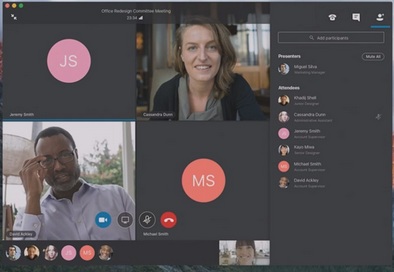
MsIgnite BRK2070 - Meet Skype for business for Mac

Presented by Richard Schwendiman and Jason Collier


Lync for Mac were not good; the Skype for business on Mac client is a new start.


A team of developers in Stockholm created the client, they have previously built the iOS Skype for business client. No code from Lync for Mac were used in the process, but it shares the same stack as the iOS and Android mobile apps. The client will work with Lync Server 2013 CU1 (UCWA 1.0) but even better with Skype for business Server 2015 (UCWA 2.0). Support for meetings is there, and the chat supports both a single or multiple windows.


Sort by availability (status) in the contacts view is coming after the General Availability release.


The video view is automatically adjusting to the number of participants in the meeting, with 2, 3 or 4 video feeds visible. Support for QoS, panoramic video and video based screen sharing is coming in later releases. Support for Persistent chat is not in the roadmap. New features will continue to be previewed using MAU (Microsoft Auto Update) even post General Availability.


Internal clients will use lyncdiscoverinternal and connect straight to the pool,
and not hair-pin the connection over the reverse proxy.